Your Google Chrome can accumulate a lot of temporary files over time. These files are a copy of the websites you visited.
Your browser stores these files so it can load the site faster the next time you visit. If you own a website and just recently updated it, Google Chrome will often still load the old version of your website.
These old files need to be cleared. It is very safe to delete these files as this will not affect your browser functionality at all.
To delete your Google Chrome cache, follow these simple steps:
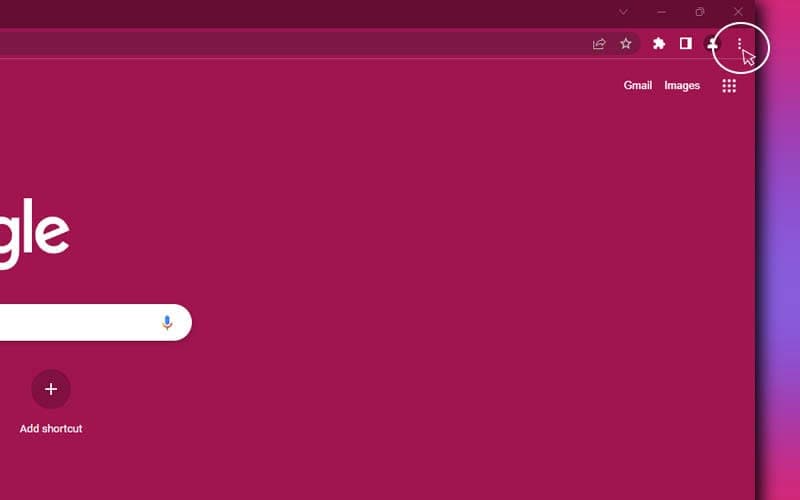
1. Click the 3 dots in the upper right corner of Google Chrome.
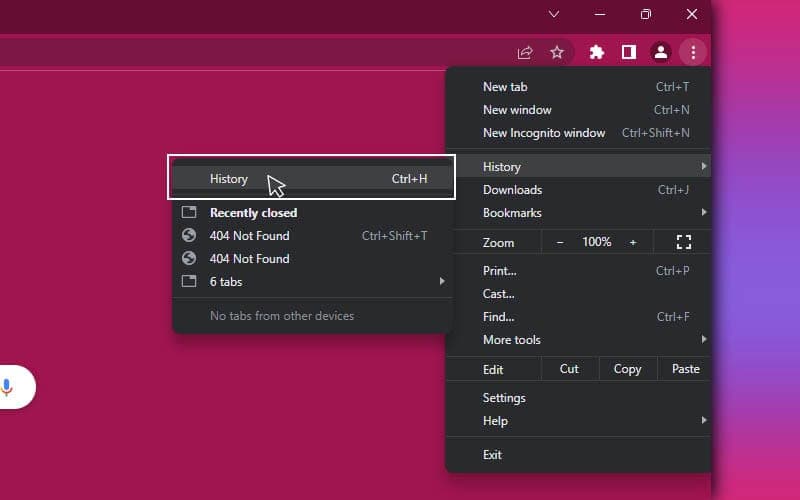
2. In the dropdown menu go to History > History.
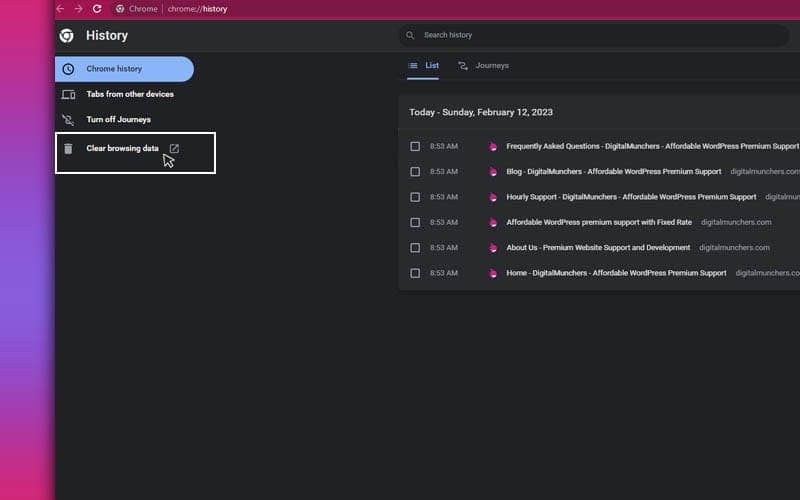
3. On the next page, click “Clear browsing data” on the left side.
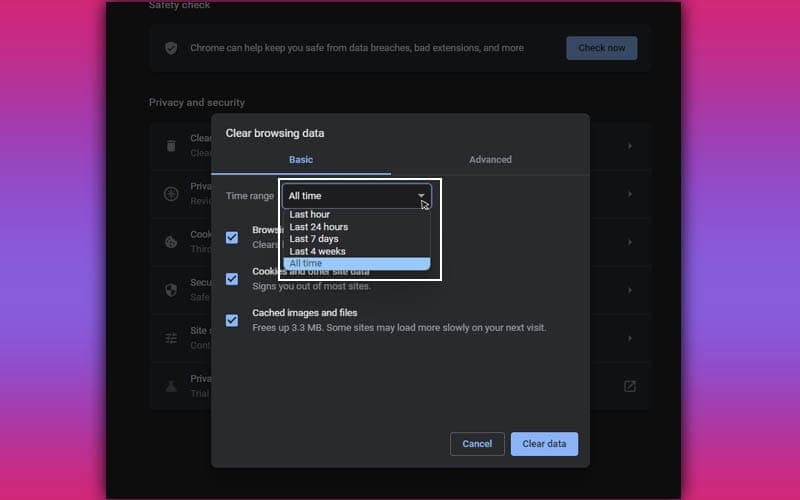
4. In the popup window, select the time range and click the “Clear data” button.