
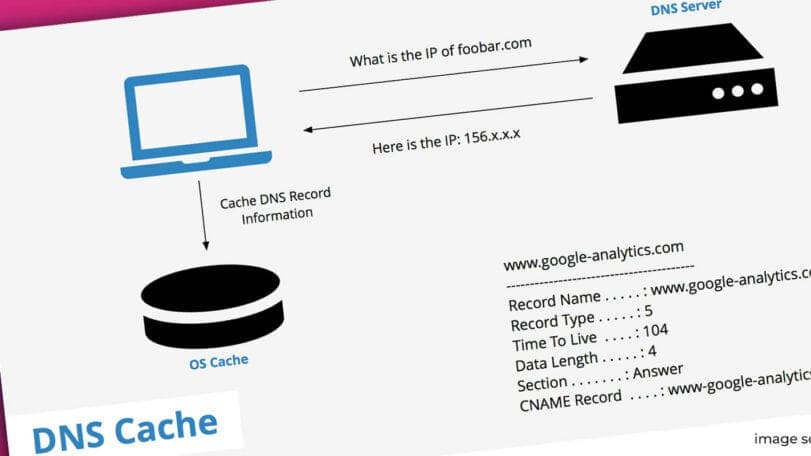
What Is DNS Cache?
“DNS cache refers to the temporary storage of information about previous DNS lookups on a machine’s OS or web browser. Keeping a local copy of a DNS lookup allows your OS or browser to quickly retrieve it and thus a website’s URL can be resolved to its corresponding IP much more efficiently. The basic function of different cache types is all more or less the same.”
What happens if the website you frequently visit changes its IP address?
When you visit your favorite website, your computer will try to check your DNS cache for a stored record for that domain; once found, it will quickly load the record. If the owner of the website changes its hosting or IP address, your browser might pull up an old copy of the site from the old IP address, or you will encounter an error loading the website.
You will need to delete your DNS cache in order to load the site with the correct DNS record. Depending on your operating system, here are ways to clear your DNS cache.
Windows
1. Click the start button (Windows key).
2. In the search box type “Command Prompt”.
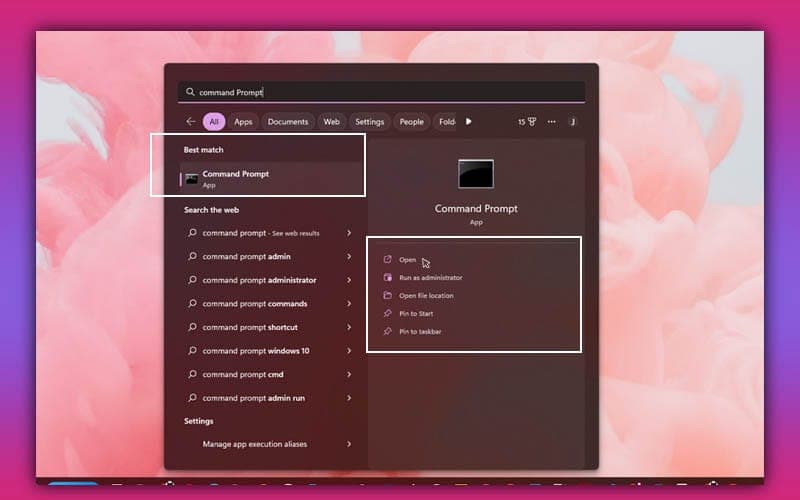
3. In the Command Prompt window type ipconfig /flushdns and press Enter. This will delete all your saved DNS entries.
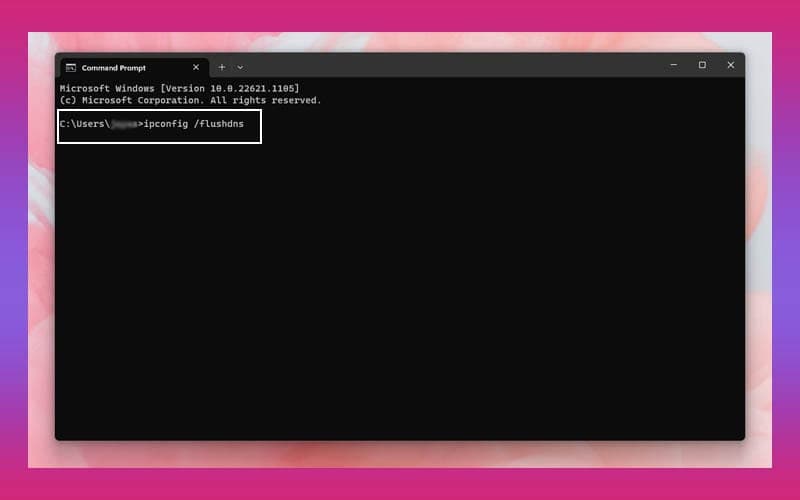
4. You will see a message in the result saying “Windows IP Configuration. Successfully flushed the DNS Resolver Cache.”
5. The command ipconfig /displaydns will display your current DNS cache entries.
macOS
Depending on your macOS version, here are the commands:
- El Capitan or newer:
sudo killall -HUP mDNSResponder - Yosemite:
sudo discoveryutil udnsflushcaches - Lion, Mountain Lion and Mavericks:
sudo killall -HUP mDNSResponder - Snow Leopard:
sudo dscacheutil -flushcache - Leopard:
sudo lookupd -flushcache - Tiger:
lookupd -flushcache
1. Open your Mac Terminal.
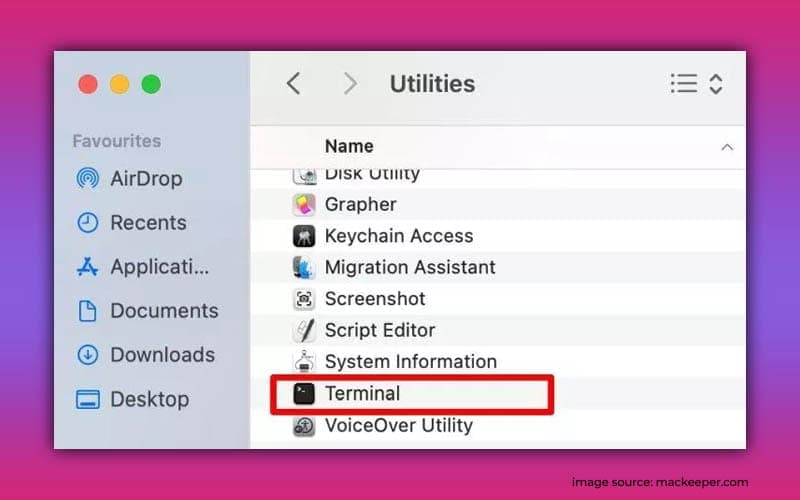
2. In the Terminal, type the command for your macOS version from the list above.
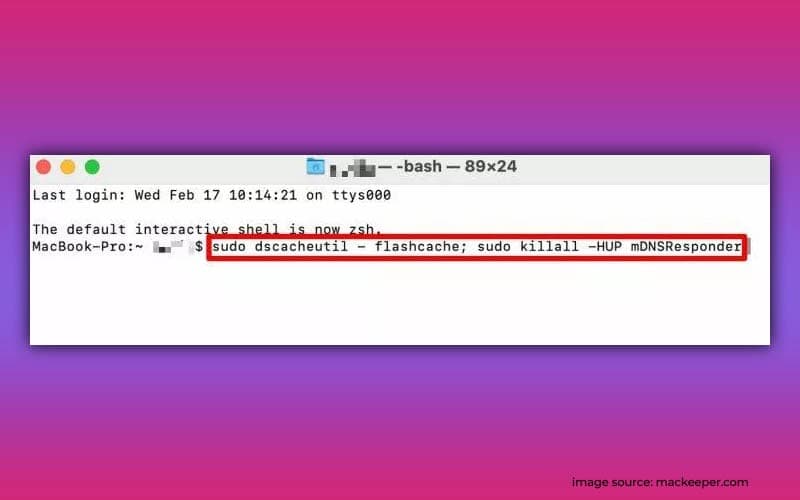
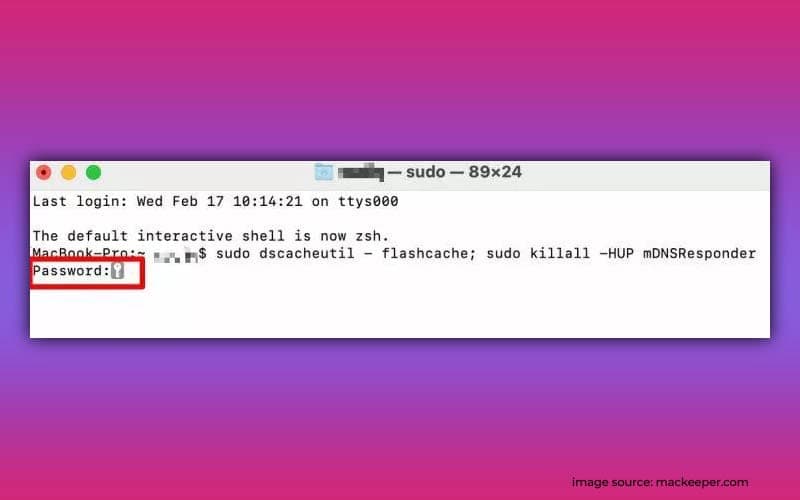
3. Enter your password and press Enter.
Google Chrome
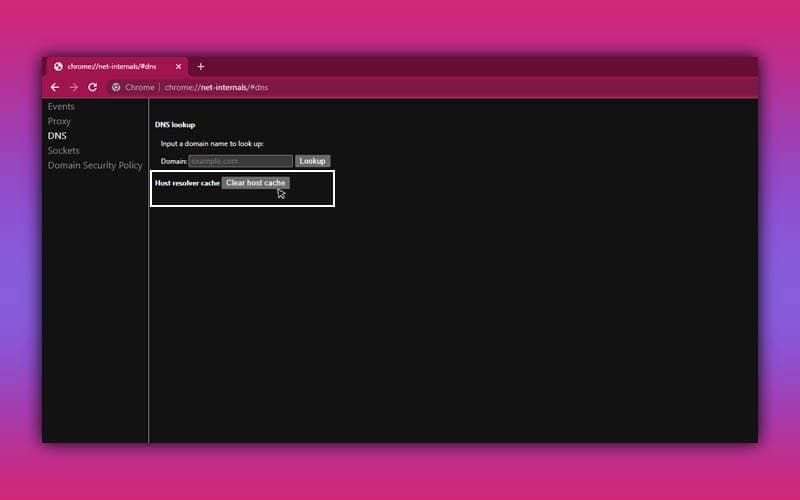
Additionally, you can clear the DNS cache in Google Chrome. Here’s how:
1. Type chrome://net-internals/#dns in the Chrome address bar and press Enter.
2. Click the “Clear host cache” button.
Summary
DNS cache is a very efficient way to avoid having to complete an entire DNS lookup every time you visit a website. Your machine will use the OS and browser cached DNS information until it expires or is flushed.